
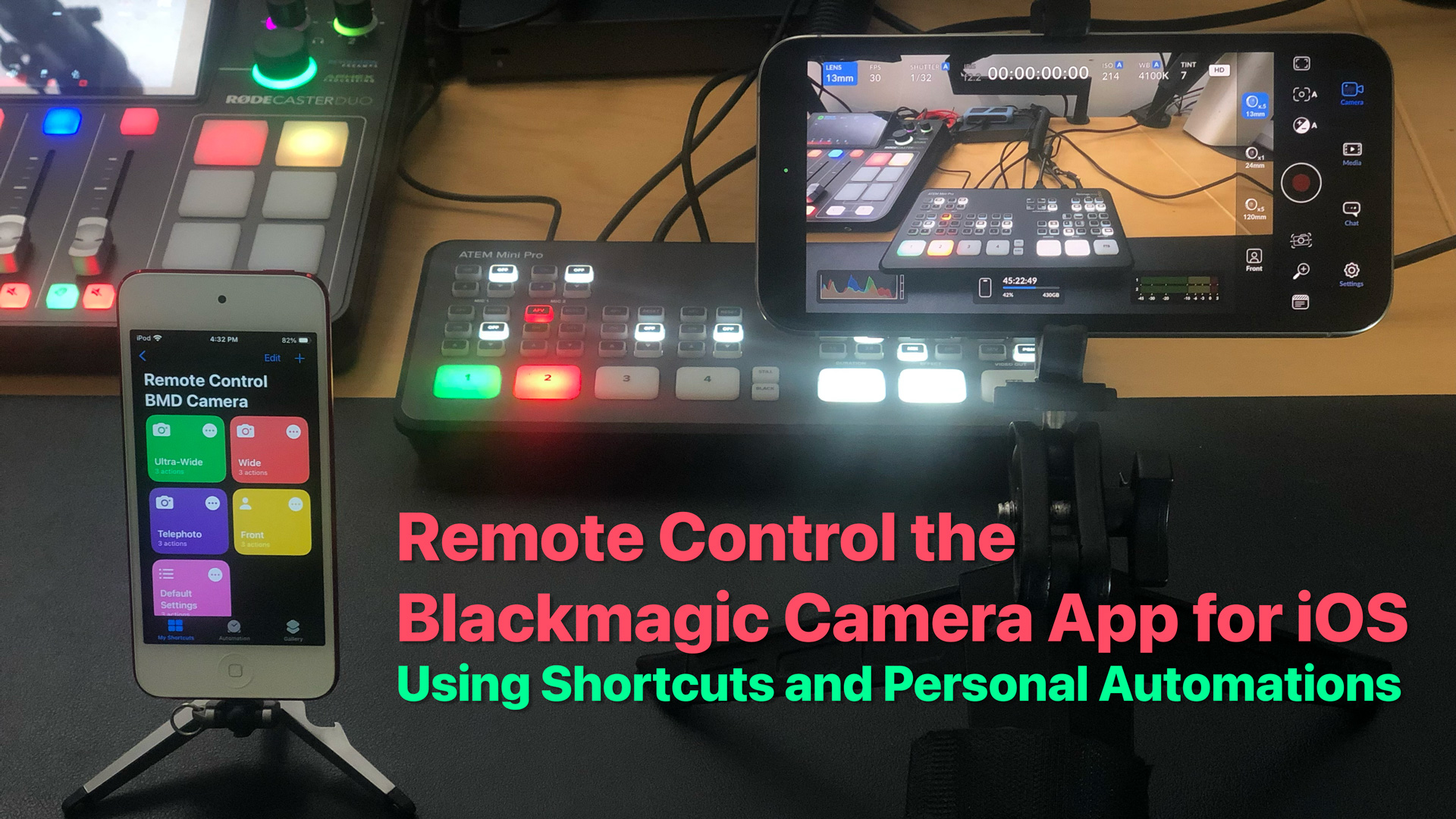
Update 2025: The latest version of the Blackmagic Camera for iOS now allows for remote controlling of other BMD Camera instances running on other iOS devices. This post will be kept up for historical purposes, as its Shortcuts actions are still valid.
The Blackmagic Camera for iOS is an excellent (and free) application that fills the void left by the Filmic Pro app once the new parent company bought the product and went crazy with subscriptions. It has almost every control imaginable for the budding filmmaker, such as clean HDMI out, ISO, Shutter Speed, White Balance, Tint, Focus, Stabilization (Extreme, Cinematic, and Standard) Codecs (from Apple ProRes 422 HQ to H.264), Resolution (4K, HD, and 720p), and more. The app surprisingly also has deep support for Apple Shortcuts.
What it lacks — in addition to Iris control — is a way to fully remotely control the application. Yes, you can use wired or Bluetooth headphones to toggle recording, and there are devices to adjust focus and zoom. But for the rest of the controls, you’ll have to do a lot of tapping and swiping, which isn’t ideal if the camera is already recording. Streamers who are using their iPhones as a B-Roll camera don’t want to get out of their seat, walk to the camera, change the settings, and return back to the stream. Shortcuts are great, but you still have to tap on a shortcut to execute it. Asking Siri to run a shortcut can be a hit-and-miss affair, due to the voice assistant’s sometimes inconsistent recognition of activation phrases; and who wants to hear, “Hey Siri, Set Lens Wide,” in your live streams?
I’m sure that Blackmagic Design has thought about adding a REST API to the app. After all, they feature this in their newer professional cameras. My guess is the code is already in the app, but the company has chosen not to expose it due to security concerns. An iPhone on a public Wi-Fi or cellular network is a lot different than a Blackmagic URSA Broadcast G2 that’s hard-wired into a private network.
All that said, there is a way to remotely control the Blackmagic Camera app for iOS. Watch the video below and read on to learn the details!
In this article, we’l learn how to use the following technologies to remotely control the Blackmagic Camera app for iOS:
- Apple Shortcuts
- Personal Automations
- iCloud email or Messages
- Optional: IFTTT
Note: If you’re just interested in downloading the shortcuts, click here. But do read the instructions to understand how this works. These shortcuts are provided as-is, and no support will be given. You are free to modify the shortcuts to suit your own personal needs.
Apple Shortcuts Support
The Blackmagic Camera app supports the following actions in Apple Shortcuts:
- Set Lens
- Set Focus
- Set FPS
- Set ISO
- Set Shutter Speed
- Set White Balance
- Set Tint
- Set Exposure
- Set Zoom
- Set Stabilization
- Set Resolution
- Set Codec
- Start Record
- Stop Record
- Navigate to View
- Set Project
Availability of certain settings within these actions depends on the iPhone model that’s running the app. For instance, the lens options on the following iPhone models.
| iPhone 13 Pro | iPhone 14 Pro Max | iPhone 15 Pro Max |
|---|---|---|
| Front 13mm 26mm 77mm | Front 13mm 24mm 77mm | Front 13mm 24mm 120mm |
As an avid developer of apps that integrate with Apple Shortcuts, I noticed that the Blackmagic Camera app uses custom App Enums for all of the configurable parameters. A downside to this is a user can’t enter a matching (or arbitrary) value using Text or a Number. This means in order to control the camera, I have to map each possible value to a specific action. For instance, the Set Focus action can set the focus between 0.00 to 1.00 in increments of hundredths. I can’t do this in a shortcut:
set Value to Shortcut Input
set focus to Value
Instead, I have to construct a series of IF statement that has 100 test cases.
set Value to Shortcut Input

if Value is 0.00 then
    set focus to 0.00
    exit
endif

if Value is 0.01 then
    set focus to 0.01
    exit
endif

...

if Value is 1.00 then
    set focus to 1.00
    exit
endif
Iterating over hundreds of possible options takes a considerable amount of time in Shortcuts. To improve performance, I created a simple hash table to cut down on the number of IF statements the shortcut has to go through:
if Value is between 0.00 and 0.20 then
    if Value is 0.01 then
        set focus to 0.01
        exit
    endif
    ...
    if Value is 0.20 then
        set focus to 0.20
        exit
    endif
endif

if Value is between 0.21 and 0.40 then
    ...
endif

if Value is between 0.41 and 0.60 then
    ...
endif

if Value is between 0.61 and 0.80 then
    ...
endif

if Value is between 0.81 and 1.00 then
    ...
endif
It’s still not instant, but it’s better than having 100 IF statements. I have created fourteen individual shortcuts to process each of the available parameters supported by the Blackmagic Camera app, save for the Set Project action. Making one giant shortcut that handles every case would have resulted in a shortcut with several thousand lines of actions. I’ve made these types of shortcuts in the past, but each subsequent version of iOS has made managing them more tedious and error-prone. So breaking them apart into several smaller shortcuts is the right move here.
The Control Blackmagic Camera Shortcuts
Go ahead and download these shortcuts to your iPhone now.
- Control Blackmagic Cam
- Control Blackmagic Cam: Lens
- Control Blackmagic Cam: Focus
- Control Blackmagic Cam: FPS
- Control Blackmagic Cam: ISO
- Control Blackmagic Cam: Shutter Speed
- Control Blackmagic Cam: White Balance
- Control Blackmagic Cam: Tint
- Control Blackmagic Cam: Exposure
- Control Blackmagic Cam: Zoom
- Control Blackmagic Cam: Stabilization
- Control Blackmagic Cam: Resolution
- Control Blackmagic Cam: Codec
- Control Blackmagic Cam: View
- Control Blackmagic Cam: Start Record
It’s recommended that you create a folder in the Shortcuts app to house all of these shortcuts. In the screenshot below, the folder has been named “Blackmagic Cam.”

Set BMD Cam Shortcut
Additionally, you’ll need a shortcut to process the data received by Personal Automations via the Email or Message triggers. This shortcut will process the JSON dictionary contained in the email and dispatch it to the Control Blackmagic Cam shortcut.
JSON and the Arguments
Next, I have defined a JSON definition to pass to a master shortcut called Control Blackmagic Cam for processing. The following fields can be included in the JSON, along with their possible text values:
| Parameter | Accepted Values |
|---|---|
| lens | front | 13 | 24 | 26 | 77 | 120 |
| focus | 0.0 to 1.00 |
| fps | 23.98 | 24 | 25 | 29.97 | 30 | 48 | 50 | 59.94 | 60 |
| iso | 20 | 25 | 32 | 40 | 50 | 64 | 80 | 100 | 125 | 160 | 200 | 250 | 320 | 400 | 500 | 640 | 800 | 1000 | 1250 | 1600 | 2000 | 2500 | 3200 | 4000 | 5000 | 6400 |
| shutter | lock | 1/30 | 1/33 | 1/48 | 1/50 | 1/60 | 1/96 | 1/100 | 1/120 | 1/125 | 1/250 | 1/500 | 1/1000 | 1/2000 | 1/4000 | 1/8000 |
| wb | lock | auto | 2500 to 10000 in increments of 50 |
| tint | lock | auto | -50 to 50 in increments of 1 |
| exposure | auto | -3.0 to 2.9 in increments of 0.1 |
| zoom | 1.0 to 15.0 in increments of 0.1 |
| stabilization | off | standard | cinematic | extreme |
| resolution | 4K | HD | 720p |
| codec | Apple ProRes 422 HQ | Apple ProRes 422 | Apple ProRes 422 LT | Apple ProRes 422 Proxy | HEVC (H.265) | H.264 |
| record | hh:mm:ss where the value is the amount of hours, minutes, and seconds to record | Anything else to start record with no end time |
| stop | any value here stops the record |
| view | camera | settings | chat | media |
For instance:
{
    "lens": "24",
    "focus": "0.5",
    "fps": "30",
    "iso": "1600",
    "shutter": "1/60",
    "wb": "5600",
    "tint": "auto",
    "exposure": "0.0",
    "zoom": "1.0",
    "resolution": "HD",
    "stabilization": "standard",
    "codec": "H.264",
    "record": "1",
    "view": "camera",
}
Sending this data to the shortcut will instruct the Blackmagic Camera app to open and set its internal state to:
- 24mm Lens
- Focused at 0.5
- 30 frames per second
- ISO 1600
- 1/60 shutter speed
- White balance set to 5600K
- Auto Tint
- No exposure compensation
- No zoom
- Recording at HD with the H.264 codec
- Standard video stabilization
- Camera view
- Start recording
Next, we’re going to learn how to:
- Transfer the JSON control information over to the iPhone running the Blackmagic Camera app.
- Get the JSON to be processed automatically when it arrives.
Personal Automations
Personal Automations provides means to run shortcuts on a device based on events happening on the device. Some events include time of day, arrival at a location, opening or closing of an app, or receiving an email or message.
Previous versions of iOS required the user to manually tap on a notification before a shortcut triggered by an event could run, but iOS 16 and 17 have allowed more automations to run automatically.
We’re going to use either the receive mail and receive message triggers. Here’s what’s happening at a high level:
- Send an email or message to the device’s iCloud email or phone number.
- Personal automation runs when specially formatted email or message is detected.
- Information in email or message is interpreted and sent to the Control Blackmagic Cam shortcut.
- Camera settings are set according by the shortcut.
Follow these steps to make two the Personal Automations that listen for emails and messages with Control BMD Camera commands.
Messages Automation
Follow these steps to create a Personal Automation that operates when a new message or SMS arrives.

- Open Shortcuts.
- Tap Automations.
- Tap +.
- Tap Message.
- Tap Message Contains.
- Enter a unique string that will identify your message. For instance:
set_bmd_cam. - Tap Done.
- Tap Run Immediately.
- Tap Next.
- Tap New Blank Automation.
- Add a Run Shortcut action.
- Select Set BMD Cam as the shortcut to run.
Here are the pros and cons to the Messages approach:
| Pros | Cons |
|---|---|
| Messages are received much faster than email. | If message is sent as SMS, there is a 160-character limit. Large JSON dictionaries will be truncated and the command will not be interpreted. You can’t send a message to yourself when using two devices logged into the same Apple ID. |
Here’s a video showing the Messages approach. Again, this is the fastest method, but it requires two devices that have different Apple IDs.
Email Automation
Follow these steps to create a new Personal Automation that runs when an email arrives to your iCloud email account.

- Open Shortcuts.
- Tap Automations.
- Tap +.
- Tap Email.
- Tap Subject Contains.
- Enter a unique string that will identify your message. For instance:
set_bmd_cam. - Tap Recipient.
- Enter the iCloud email address for the device.
- Tap Done.
- Tap Run Immediately.
- Tap Next.
- Tap New Blank Automation.
- Add a Run Shortcut action.
- Select Set BMD Cam as the shortcut to run.
| Pros | Cons |
|---|---|
| Emails are pushed directly to your device. No restrictions on how large the JSON payload can be. | Takes longer to receive the pushed email than the Messages approach. You must sent to an iCloud email account, as those are received via push. |
Testing
Example Using Email
Once you have installed all of the shortcuts and created your Personal Automations, you’re ready to test the shortcuts. The easiest way is to test using the Email method. You can follow the instructions below or use this BMD Cam Email Example shortcut as a starting point.
- Open Shortcuts.
- Tap +.
- Add a Dictionary action.
- Fill in the fields that you want to set in the Blackmagic Camera app. Refer to the JSON and the Arguments section for the full list of fields and values you can use.
- Add a Text action.
- Set the text to:
set_bmd_cam####(Dictionary)where(Dictionary)is a variable reference to the Dictionary created in Step 4. - Add a Send Email action.
- Tap Recipients.
- Select the iCloud email that is attached to the device set up to control the Blackmagic Camera app.
- Tap the disclosure triangle in the Send Email action.
- Uncheck Show Compose Sheet.
- Tap Done.
- Tap Run to run the shortcut.

As you can see in the video below, the following things happen when you run the shortcut:
- An email will be sent to your iCloud email account with the JSON dictionary of parameters to set in the Blackmagic Camera app.
- When the email is pushed to your device (within 10-15 seconds), the Personal Automation will run.
- The contents of the email will be sent to the Set BMD Cam shortcut.
- Set BMD Cam will parse the email and send it to the Control Blackmagic Cam shortcut.
- Control Blackmagic Cam will go through each valid field in the JSON dictionary and instruct the Blackmagic Camera app to change the lens to the 24mm, set the frame rate to 30fps, and enable Auto-Focus.
Example Using IFTTT to Send an SMS
We can speed things up by sending an SMS to the iPhone running the Blackmagic Camera app. Remember that we need to do this because we can’t send messages to ourselves and have the Personal Automation run. If you have multiple devices signed into different Apple IDs, then you can skip this section.
This also requires you have a paid subscription to IFTTT. This is because the SMS action is not available to free accounts.

- Log into IFTTT.com.
- Click Create.
- Click Add next to If This.
- Click Webhooks.
- Click Receive a web request.
- Set the event name to set_bmd_cam. If you change this, make sure you change the string in your Personal Automations and the Set BMD Cam shortcut as well.

- Click Create Trigger.
- Click Add next to Then That.
- Click SMS.

- Click Send me an SMS. You must have your phone number configured earlier in your IFTTT profile.
- In the Message field, enter this text exactly:
{{EventName}}####{{Value1}}

- Click Create action.
- Click Continue.
- Name your new applet.
- Click Finish.
Making the IFTTT Shortcut
To test this out, let’s create a shortcut. Download and install Remote Control BMD Cam (IFTTT Webhooks) shortcut as a starting point.
When you add the shortcuts to Apple Shortcuts, it will ask you two questions:
- IFTTT API Key: You can get this from your IFTTT Webhooks settings page. Do not share this API key with anyone, otherwise, they will be able to send Webhooks using your account.
- Enter the name of your Webhooks event name. You should keep set_bmd_cam as entered.

Click Add Shortcut to add it to your gallery. Editing it will display the following screen.
Change the fields and values in the Dictionary to what you want to send to the Blackmagic Camera app.

Running the shortcut will be faster than the email method. Remember to keep your message below the 160 character limit. Watch the video below to see this method in action:
Why would you want to use IFTTT instead of email? Perhaps you want to run the shortcut from your Apple Watch or maybe all of your devices are logged into the same Apple ID.
Using Messages
Lastly, we’ll create a shortcut that uses the Messages approach:
- Open Shortcuts.
- Add a Dictionary action.
- Populate the dictionary with the commands you want to send to the Blackmagic Camera application.
- Add a Text action.
- Set the contents of the Text action to
set_bmd_cam####(Dictionary)where(Dictionary)is a reference to the Dictionary action created in Step 2. - Add a Send Message action.
- Set the recipient to your phone number or iCloud email.

Remember, this method only works if the device sending the message is not logged into the same account as the iPhone running the Blackmagic Camera app.
Bugs and Limitations
Here are some things to keep in mind with this method of remotely controlling the Blackmagic Camera app on iOS.
Repeats and Loops
Shortcuts is not good at performing tight loops, so trying to use a shortcut to focus pull or smoothly zoom is not going to work with this method.
It’s Not Instant, But It’s Better Than Manual
You’ll have to be okay with the delay associated with sending an email or message to the device. Remember, email is slower than messages, but messages sent as SMS have a character limit. It’s still faster than getting out of your seat and manually changing the settings on the app.
No Sending to Yourself
Another limitation with the Messages approach is that you cannot send yourself a message. That is to say, you can’t from your Mac logged into the same Apple ID as on the iPhone, send yourself a message using the Messages app and have it processed by the Personal Automation. You must send a message from a computer using a different Apple ID.
Security
Because the automations rely on pattern matching on the subject or contents of the email or message/SMS it can lead to abuse of the system. If people knew your iCloud email or phone number, along with the keyword that triggers the Personal Automations, they can mess with your Blackmagic Camera app. To mitigate this, you can configure your Email and Message Personal Automations to accept only select senders.

Improvements
Here is some unsolicited advice to Blackmagic to improve the Blackmagic Camera app for iOS.
Auto Focus Bug
I noticed that setting the focus to Auto correctly sets it in the Blackmagic Camera app’s interface but doesn’t actually cause the camera to start auto-focusing. This is something only Blackmagic Design can resolve.
Allow Variables to Action Parameters
The biggest improvement I can suggest is to allow variables to be used as parameters to the various actions. As mentioned before, passing in a variable to a Blackmagic Cam action doesn’t work. The app can’t understand the variable, so it displays a menu of available options.

What could be a simple two line shortcut to change the zoom level of the camera becomes a 585 action shortcut that matches a 150 possible values with the corresponding action.

Perform Zoom from Start to End
An action should be added to allow the user to specify a starting and ending zoom position. Running the shortcut will perform a smooth zoom. It would be a bonus to add an easing parameter to enable linear, ease, ease-in, ease-out, or ease-in-out interpolation to the zoom.
Focus Pull from Start to End
Another action should be added to enable focus pulling. User would specify the starting focus point and the ending focus point. Running the action would perform a smooth or interpolated focus pull between the two points.
REST API
While Shortcuts are great, it’s not the ideal means to automate the Blackmagic Camera app. Blackmagic should bring its Camera Control REST API from their professional cameras to the app.
Concluding Thoughts
By taking advantage of Apple’s powerful Personal Automations and Shortcuts, filmmakers are now able to remotely control key features of the Blackmagic Camera app for iOS.
Let me know how you use the shortcuts in your productions by leaving a comment below. If you like the content you see, consider joining MixEffect Labs or at least subscribing to my YouTube channel.